Cellphones were once just communication devices, but they now are very powerful tools that we use in our daily lives. As we get older, our vision and hearing decline. This often makes it difficult to navigate a smartphone.
Smartphone manufacturers have made significant strides in enhancing accessibility features, ensuring that every user, regardless of their physical abilities, can fully utilize the functionalities of modern mobile technology. One such breakthrough lies in magnification capabilities, offering individuals with visual impairments the ability to navigate their screens with ease.
Display & Text Size
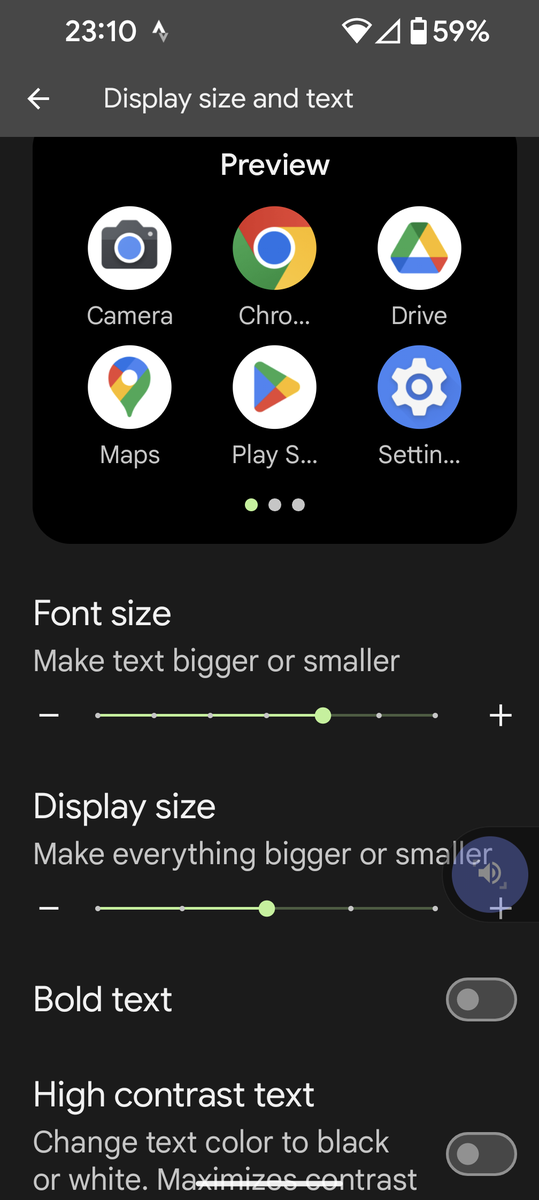
The first tip to make your smartphone more readable is to adjust the device's display size. You can have a better experience by resizing everything on your displayed on your screen including icons. In addition to the display size, you can increase the font size of text and even bold text for it to stand out.
Magnification or Zoom
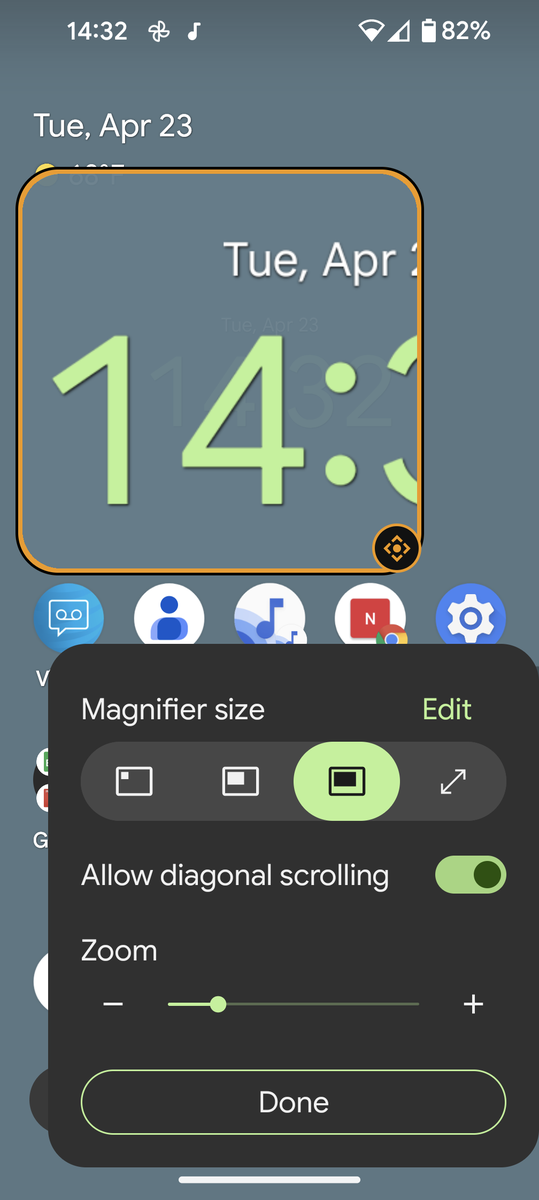
It can be quite helpful for people with poor vision, to Zoom in or magnify the screen. Smartphones have settings that allow the user to Zoom in or magnify the screen to allow for easier reading. You can configure your smartphone to magnify the entire screen or a smaller window of the screen. It's like having a magnifying glass that you can slide over the phone display.
These features are available through your phone's Settings. In Settings, scroll down to find Accessibility. You will find all accessibility features here.
If you want to learn more about these smartphone accessibility features, I have regular digital skills office hours at the McDowell County Library, 90 West Court Street, Marion, on Tuesday, May 14, 3 p.m. I will also be hosting Mastering Mobile on Tuesday, May 21, 1 p.m. at the McDowell County Library.
Any questions, please call 828-652-8104. Ask for Molly.