Be Adventurous, but Stay Safe With Your Smartphone
(Updated: Sept. 17, 2024, 5:29 a.m.)
I'm the adventurous sort. I like to explore whether it's in the woods or the big city. It's always best to adventure out in pairs, but we all know that isn't always possible. I'm also independent. Being adventurous and independent, I often find myself exploring alone.
Whether you're hiking alone in the woods, biking on secluded trails, or exploring a new city during a business trip, personal safety is paramount. For those who love adventure and find themselves exploring solo, smartphones offer valuable safety features. Most phones have Safety & Emergency settings under the phone's settings. There are also apps like Personal Safety or Safety apps. This is where you can access personal safety features.
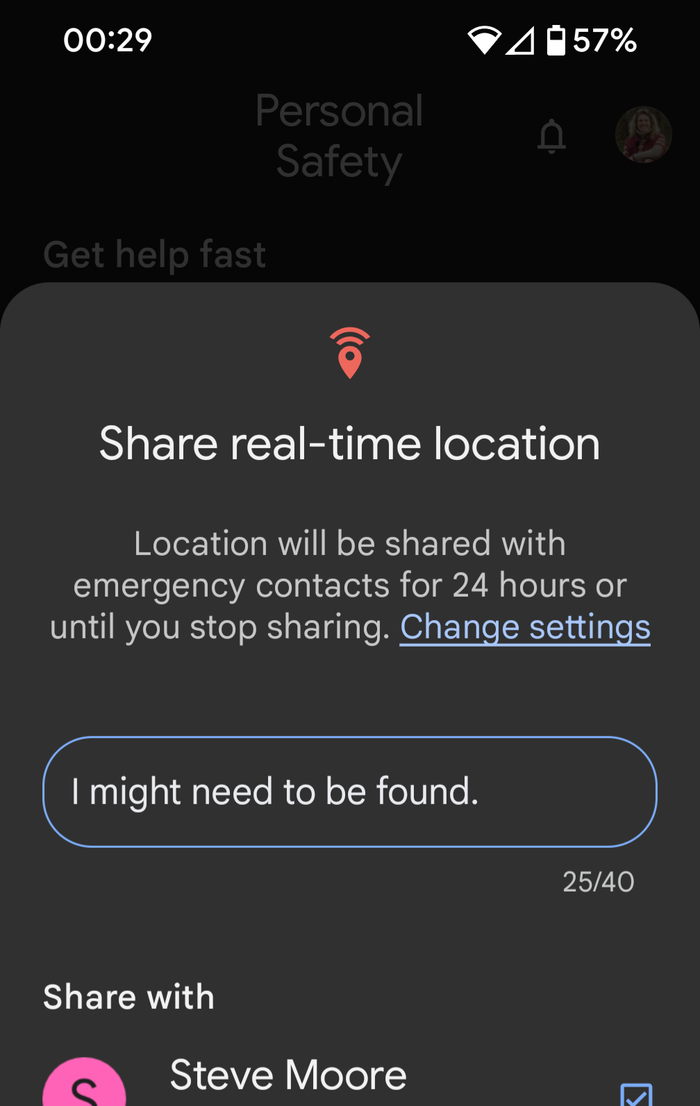
Share your location with emergency contacts.
First, you have to identify at least one emergency contact. You can do this in Safety & Emergency settings on your phone. You will also need to grant the Safety app "While in Use" Location permission. In an emergency, your real time location can be shared with your emergency contacts. There are other location sharing apps as well.
Start emergency sharing 1. On your phone, open the Safety app . 2. Tap Emergency sharing. 3. Select who you want to share your real-time location with. You can also add an optional message. 4. Tap Share You can tap the notification banner to view the details of your "Emergency sharing."
Stop emergency sharing 1. On your phone, open the Safety app . 2. At the top left, tap Emergency sharing Stop Stop sharing. You can add a note to explain why you've ended the emergency share. Tip: Emergency sharing will automatically end after 24 hours.
Schedule a safety check
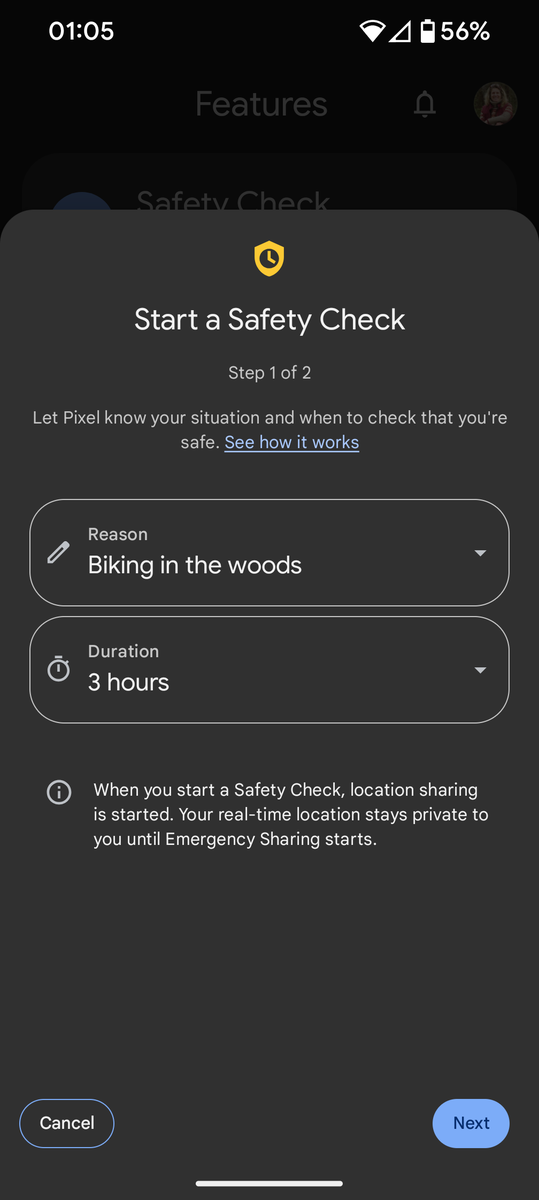
To avoid all those "Where are you texts?", this is a good tool. If you want your phone to check on you and let your emergency contacts know that everything is okay, you can schedule a safety check. For example, you can use a safety check when you walk in an unfamiliar area or biking on a secluded trail. You must grant "While in Use" location permissions to the Safety app.
1. On your phone, open the Safety app . 2. Tap Safety check. 3. Select your Reason and Duration. You can set the check at any duration for up to 24 hours. 4. Tap Next. 5. Select your contacts. 6. Tap Start.
When it's time to check for your safety, you'll get an alert for 60 seconds before emergency sharing begins. If you mark yourself safe, the emergency share will be canceled. You can stop the safety check at any time through the notification. If you don't choose one of the options in 60 seconds, emergency sharing will begin.
1. When you get the notification, choose one of the options: --I'm OK --Start sharing now --Call 911 2. If your phone is locked, you might need to unlock it. If your phone turns off or loses signal, the safety check will remain active and will start an emergency share with your last known location at the scheduled check-in time.
If you questions about these features are any other technology questions, you can catch me here:
Tech Time with Molly @ the McDowell Library on the 2nd Tuesday of the month, 3 to 5 p.m.
Tech Time with Molly @ Blue Ridge Terrace on the 2nd Wednesday of the month 2:30-4:30 p.m.
Making Your Smartphone Age Friendly, Blue Ridge Terrace, August 21, 3 p.m.